





On Mobile, Amount and Phone Number Fields Show a Letter Keyboard—Is It Because the Input Types Weren't Configured Separately?
The common reason a mobile input shows the wrong keyboard is not a system or IME problem, but that the input type was not configured according to what users will actually type in that field. Fields that are mainly numeric—such as phone numbers, amounts, verification codes, and quantities—should bring up the numeric keyboard first; only plain text fields such as name, address, and notes are suited to the default keyboard. The cost of misconfiguration is not ugliness, but two or three extra keyboard switches every time someone fills it in. On a form with more than a dozen fields, this can noticeably increase the abandonment rate midway.
A common situation in delivery is: developers generate fields in bulk using the default text input, all inputs look the same in the design file, and only during real-device validation do people discover that amount and verification code fields both require manual keyboard switching. Input cost on mobile is already higher than on desktop; if the keyboard type is not configured well, it is like giving back the step the system could have saved users. For mobile forms in 2026, this step is already a baseline requirement, not a bonus.
1. Why a Wrong Keyboard Configuration Drains People More Than Ugly Styling
Keyboard type is a hidden experience that affects users every single time they use it. Most users can tolerate small styling flaws; but having to switch back and forth between two keyboards on every input is an action that continuously drains patience. Based on common mobile delivery habits in 2026, switching keyboards once per field takes about 1–2 seconds; across a 10-field form, that adds up to more than ten seconds of extra cost.
What is more troublesome is the error rate. Typing numbers on the full keyboard easily mixes in letters, validation fails, and users have to go back and find which field is wrong. This kind of problem is often blamed on “the user not being careful,” but in reality the input field did not narrow the input channel.
- Switching cost: about 1–2 seconds per keyboard switch, and the more fields there are, the more obvious it becomes;
- Error cost: accidentally hitting letters on the full keyboard, then reworking after validation is triggered, costing an extra 5–10 seconds each time;
- Consistency cost: in the same form, half the fields bring up a numeric keyboard and half bring up a letter keyboard, making users wonder if they tapped the wrong field.
2. First Categorize Fields by “What Users Will Type”
The basis for choosing a keyboard type is what content will ultimately be stored in the field, not what the field is called. Take “ID” as an example: an order number may be all digits, while a workstation number may have a letter suffix—the two should be configured with different keyboards. Categorizing first and then setting attributes is much more reliable than configuring each field by feel.
- Plain text: name, address, notes, title. Use the default keyboard; Chinese users first need the Chinese IME, so do not force it to English;
- Short numeric strings: phone number, verification code, ID card number, bank card number. This content is essentially a string and may include leading zeros or spaces; just bring up the numeric keyboard, and do not treat it as a mathematical number;
- Numeric values and amounts: price, quantity, discount. These need a decimal point, and in some cases a minus sign; the keyboard needs to let users type the decimal point directly;
- Email, URL, and search: these need @, periods, slashes, and the enter key; using the corresponding type can bring these symbols onto the first screen;
- Date and time: leave these to the system or component picker. Do not make users type date strings with the keyboard; format errors are almost inevitable.
After categorizing, note that the third category, “numeric values,” and the second category, “numeric strings,” are often conflated, which is a major source of revision rework. Numeric values need to participate in calculations, while numeric strings only need to be submitted as-is. The former can tolerate a stepper; the latter cannot tolerate automatic zero stripping or conversion to scientific notation.
3. type, inputmode, and telephone type: Choose One or Combine Them?
At the implementation level, there are four common approaches that can affect the keyboard, and much of the controversy actually comes from confusing their responsibilities. The comparison below is organized by experience range; for specific values, it is still best to verify against official documentation and the target OS version, rather than finalizing based only on how one device behaves.
- Numeric type: semantically a number, shows a stepper, and handles leading zeros, decimal points, and minus signs inconsistently across browsers; suitable for fields that truly participate in calculations. The change is small; the typical range is a few attribute adjustments plus half a day to a day of regression testing;
- Telephone type: semantically a phone number, and in practice it brings up the numeric keyboard while preserving string behavior; commonly used for phone number, verification code, and ID card fields. The change is close to the previous one, but paste and length validation need to be rerun; the typical range is one to two days;
- inputmode attribute: only affects the keyboard without changing the input’s semantics, a compromise that keeps text validation while changing the keyboard. Compatibility needs to be confirmed system by system; cross-OS regression usually takes one to three days;
- Component library input components: saves field-by-field discussion, but is limited by component version and customization capabilities. For amount and mixed fields, secondary wrapping may be needed, and from experience this adds two to five days of wrapping and integration time.
A common counterexample is using the numeric type for phone numbers: when users paste a number with spaces or a plus sign, it gets rewritten, length validation fails on submit, and eventually the team has to switch back to a string type and redo the work, wasting a test cycle. From experience, as long as the field’s value does not participate in addition, subtraction, multiplication, or division, treat it as a string first, then separately specify the keyboard.
4. At Delivery: Which Categories to Fix First When Timelines Are Tight and Fields Are Many
One type of redesign I have handled: moving an old admin backend to mobile, with more than ten fields on one page. Development had habitually used the default text type across the board, only about a week remained, the design file was already final, and there was no room for a major rework. The approach was to first mark the two field categories “numeric-heavy” and “symbol-containing,” change only those two, write the remaining fields into the acceptance checklist as pending items, and then verify the keyboard’s first screen and visible area one by one on real devices. The result was reducing input switches on the main path from a common five to eight down to one or two. The tradeoff was having to explain clearly in the release notes which fields were not changed, to avoid them being treated as missed items and reworked in the next round. The experience range for this tradeoff is roughly: when there are more than ten fields and less than two weeks of schedule, fixing these two categories first usually covers most input pain points.
5. What Counts as Acceptable, and When Not to Force Configuration
Scenarios suitable for configuring keyboard types first: high mobile traffic share, clear field types, and primarily short forms such as checkout, registration, supplementary data entry, and lookup. The more uniform the fields, the more direct the benefit, and the faster the change. During real-device validation, check these items:
- Numeric-heavy fields can be completed from the first keyboard screen, without paging to the symbols screen;
- Amount fields’ keyboards can type the decimal point directly, instead of making users find it on the symbols screen;
- Pasted content is not rewritten by the input field; leading zeros, spaces, and hyphens stay as-is;
- Chinese name fields do not default to an English keyboard;
- After the keyboard appears, the current input and the primary button remain in the visible area, so users do not need to dismiss the keyboard before tapping submit.
Situations where you do not need to force configuration, or should even give it up: desktop-first admin systems, note fields that require mixed Chinese and English input, mixed fields with unit suffixes, and search boxes where users frequently move back and forth between numbers and text. Forcing a keyboard type on these fields can instead leave users stuck on the wrong keyboard page, unable to find the key they need.
FAQ
Is it OK to use the numeric type directly for phone number inputs?
Not recommended. A phone number is a string; leading zeros or plus signs may be rewritten. Using telephone type or specifying only the numeric keyboard is more reliable, and validation should still be done as a string.
What should I do if the numeric keyboard for an amount field has no decimal point?
A common cause is using a keyboard that only provides integers. Switch to a type with decimals, and confirm on a real device that the decimal point is on the first screen; do not judge only from the design file.
Should desktop also be configured with these keyboard attributes?
The benefit is minimal. Desktop is primarily physical keyboard; these attributes mainly affect touchscreens and mobile browsers, so it is more worthwhile to focus effort on mobile form validation.
Can users switch back to the default keyboard themselves?
Most systems allow manual switching, but users will not switch for every field. Being able to switch only means there is room for error tolerance; it does not mean the cost of misconfiguration can be ignored.
What keyboard should be given to long text boxes such as notes and addresses?
Use the default keyboard. This content is mainly Chinese and symbols; specifying a numeric or English keyboard would instead block the IME, which is not worth it.
If the form on hand is being redesigned, start by taking one page and labeling the fields as plain text, numeric string, numeric value, symbol-containing, or date, then verify the keyboard and visible area against real devices. This approach prioritizes keeping the mobile main path usable; if the product is desktop-first, or the fields themselves are mixed and hard to distinguish, go back first to handle labels, errors, and layout, and leave keyboard types for later optimization.
-
 UI Design & Prototype for Sunwayland's ThingNet IIoT Platform
UI design and prototyping for ThingNet IIoT ...
-
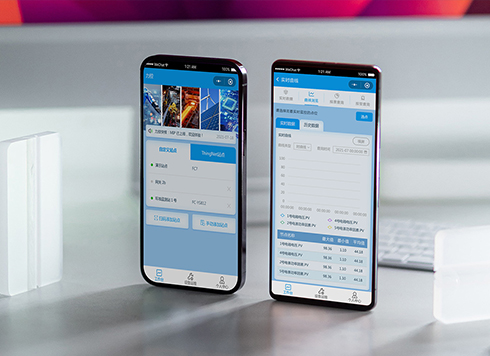 Likong Industrial IoT Tech Co., Ltd. Mini-program UI/UX Design
IIoT firms: mobile mini-program + platform. ...
-
 Livy Pig Farming IoT Platform UI Design
This IoT system uses sensors to monitor hog ...
-
 UI Design of the Internet Advertising Platform (a Sci-tech Sense Official Website)
The corporate website UI features a futuris ...
-
Admin tables are fine to scan on desktop, but at nearly 20 rows per screen for reconciliation they blur—is the row height too tight or are separators missing?
Date: Oct 14, 2026 Read: 7
-
Status labels look distinct on a computer but look the same on a conference room screen—is it projection color shift, or are the labels only using color?
Date: Oct 13, 2026 Read: 9
-
Some amounts in a table have two decimals and some don't, and right-aligning still leaves them misaligned—is the decimal point not aligned?
Date: Oct 12, 2026 Read: 14
-
When an admin list is empty on first open and users keep waiting for it to load, is the empty state failing to tell them they can create one?
Date: Oct 11, 2026 Read: 20
-
Button text spills outside the border after the English version goes live—is English really too long?
Date: Oct 9, 2026 Read: 17